Managing Real-Time Zero-Trust Admin Access to an Inheritance Tree
At White Cloud Security, we’ve built our Zero-Trust App and Data Security Model to extend not just to applications, but also to admin access and system management. Using our Security Groups Inheritance Tree and real-time Admin Groups, you can enforce strict, auditable, and granular control over who can manage which parts of your infrastructure.
In this post, we walk through how to delegate and manage real-time Zero-Trust Admin access within an Inheritance Tree of Security Groups, using Subgroup Organizations, Admin Groups, and Policy Profiles.
🔐 Core Components
To understand how access is managed, start with these foundational system elements:
- Organizations (Orgs): Logical containers for grouping users, endpoints, and policies.
- Inheritance Trees of Subgroups: Security Groups arranged in parent-child hierarchies, where access and policies cascade.
- Security Groups: Groups that manage endpoints, policies, and inheritance logic.
- Policy Profiles: Reusable policy sets shared in real time across multiple Security Groups.
- Admin Groups: Control who has admin rights within specific Security Groups — in real time.
- Users: Assigned roles like Org Viewer, Org Admin, System Agent, Account Agent, etc., which determine their visibility and control.
See the Zero-Trust App Security Model and Security Groups Inheritance Tree for background.
🧭 Real-Time Admin Access Flow
✅ Step-by-Step: Delegate Zero-Trust Admin Access
1. Create a Subgroup Organization
A Subgroup Org helps scope admin access to a specific branch of the Inheritance Tree:
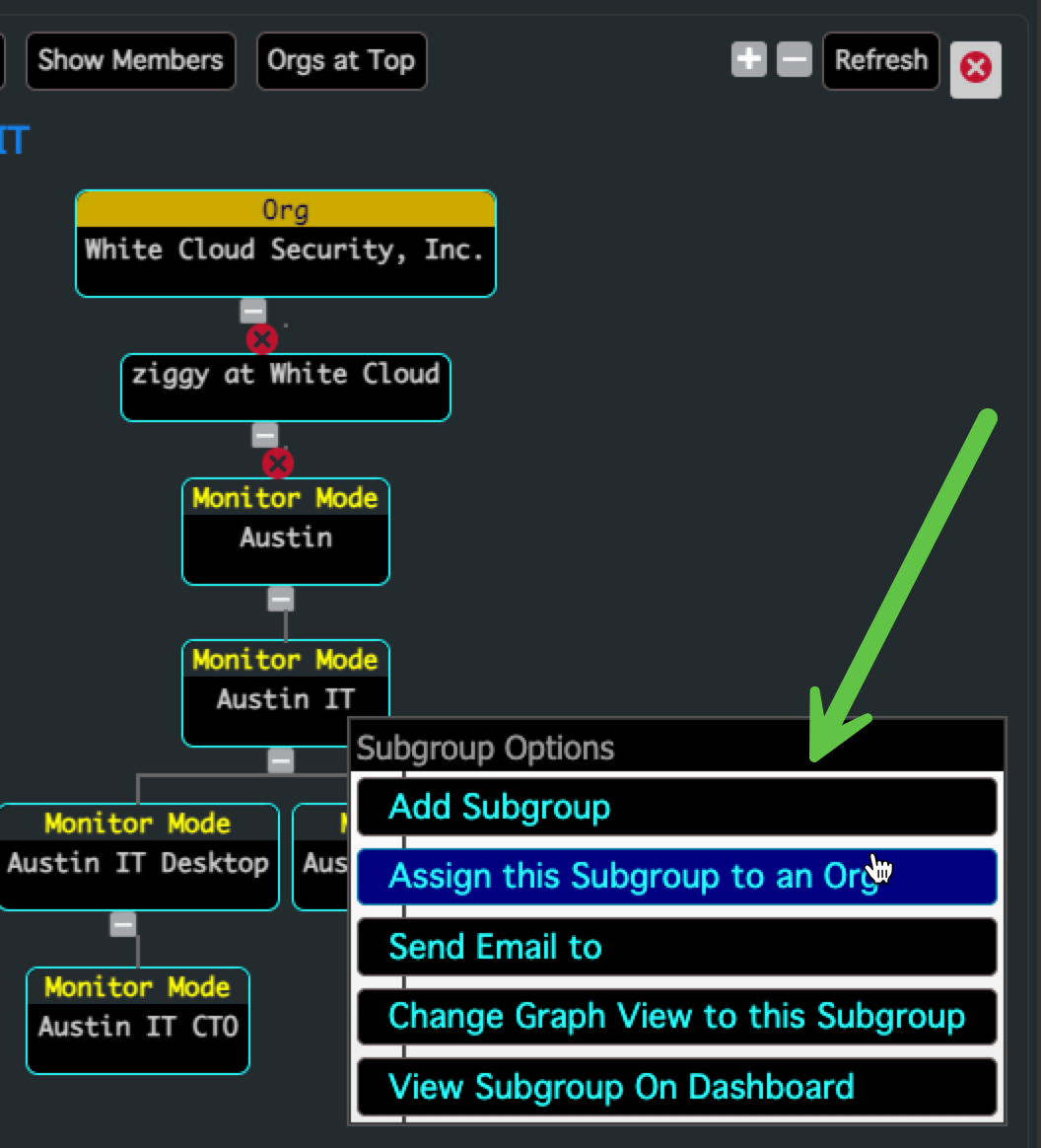
- Navigate to the Graph View for your Security Group
- Choose “Assign this Subgroup to an Org”
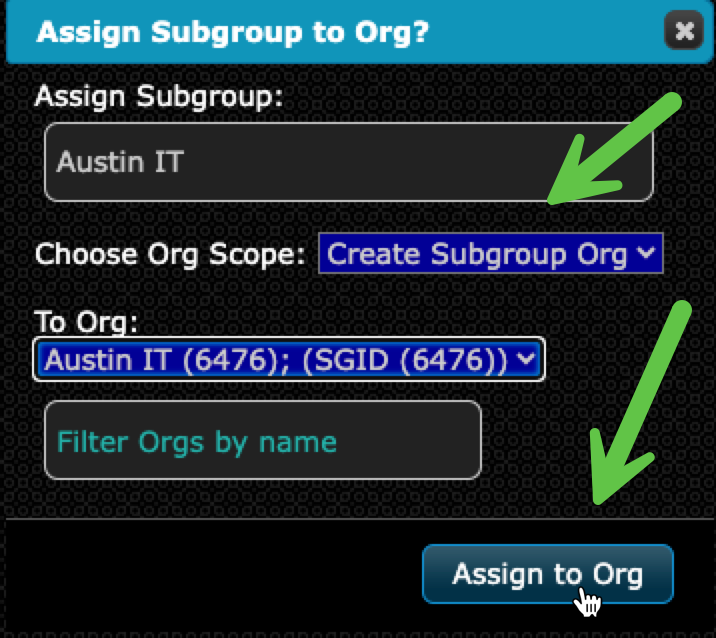
- Select "Create Subgroup Org"
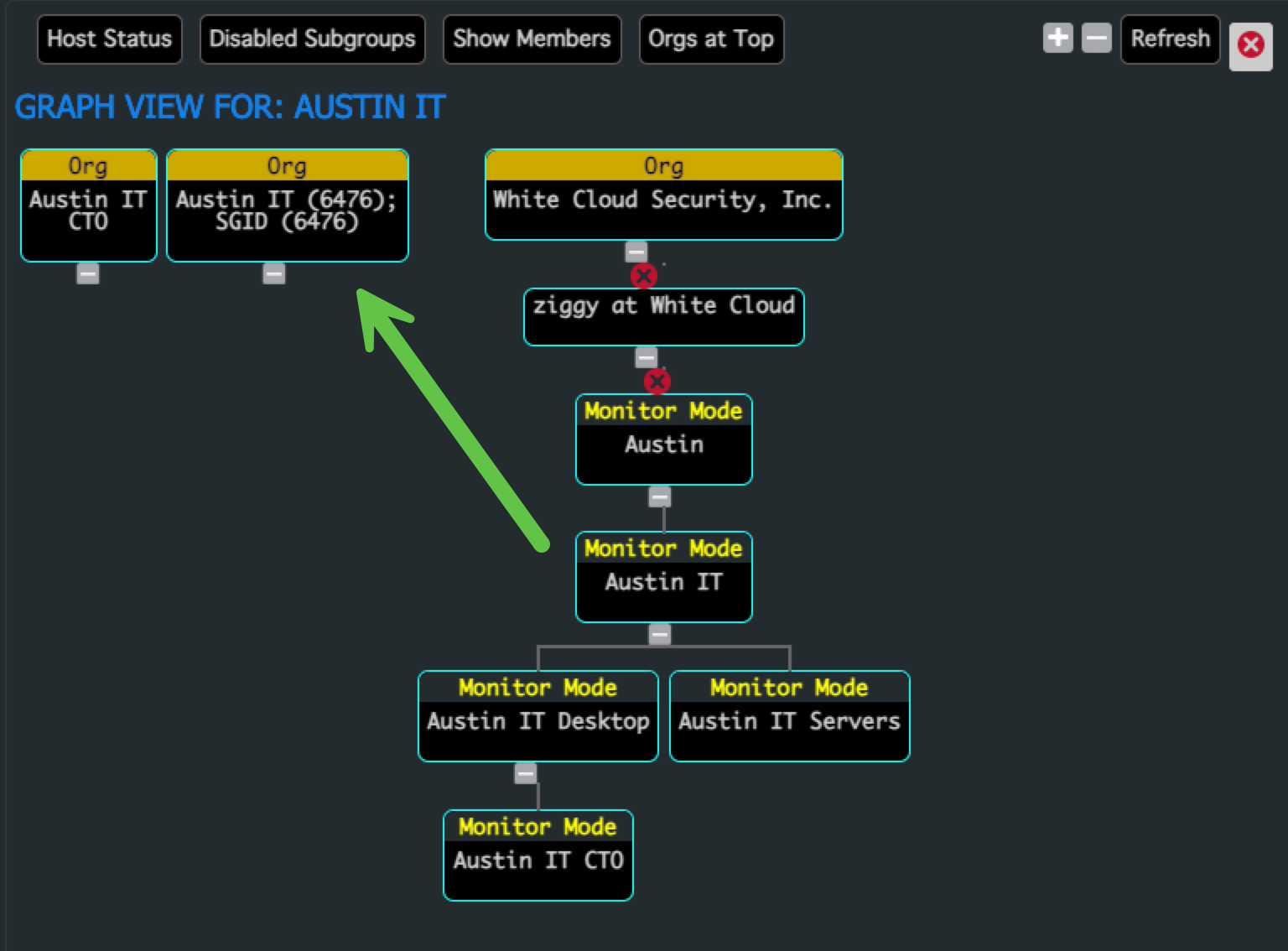
- The Subgroup Org now appears in the Graph View
2. Create an Admin Group within That Subgroup Tree
- Right-click the new Subgroup Org
- Choose “Add Subgroup”
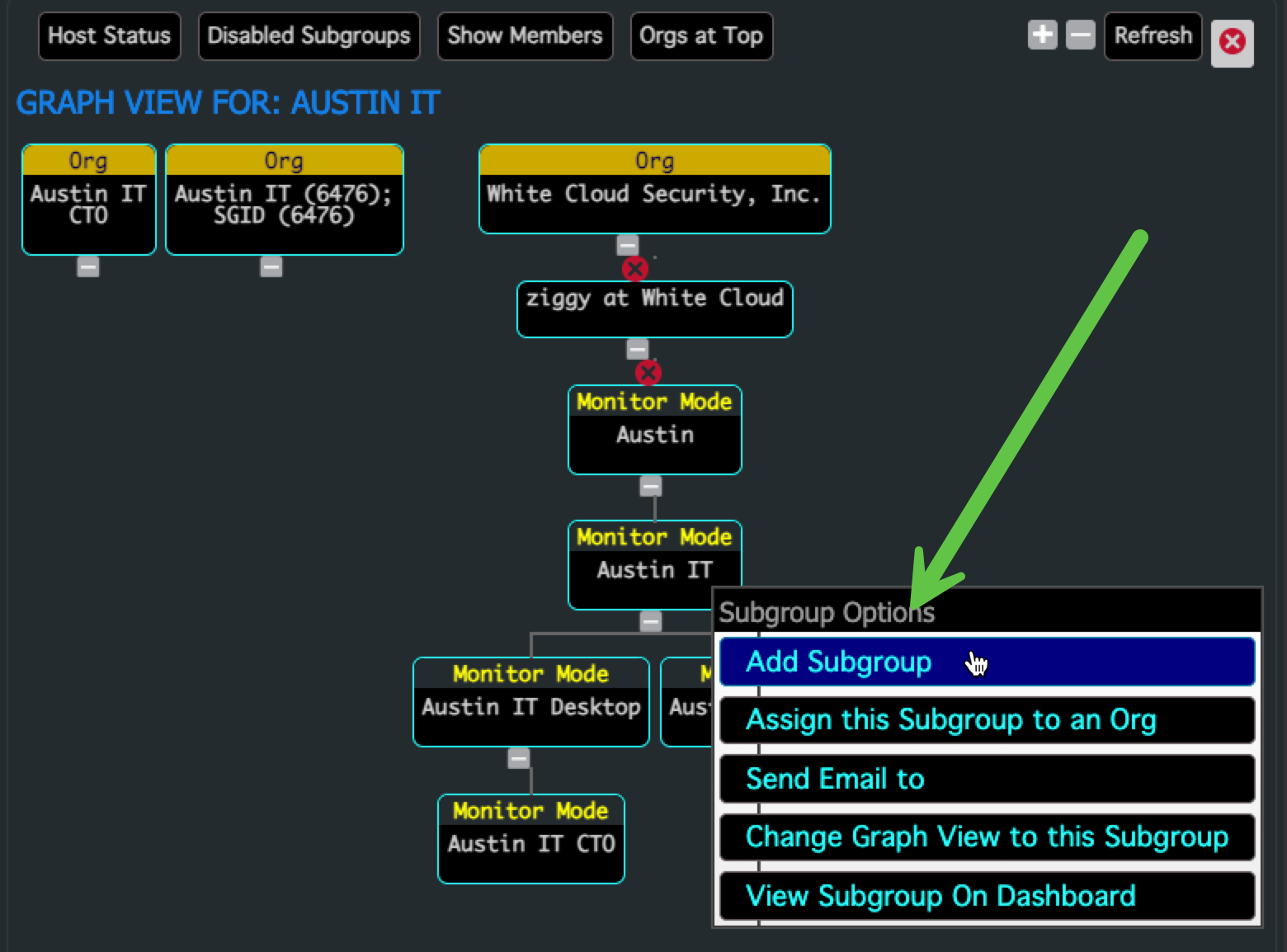
- Enter a name for the Admin Group (e.g.,
Austin IT Admins)
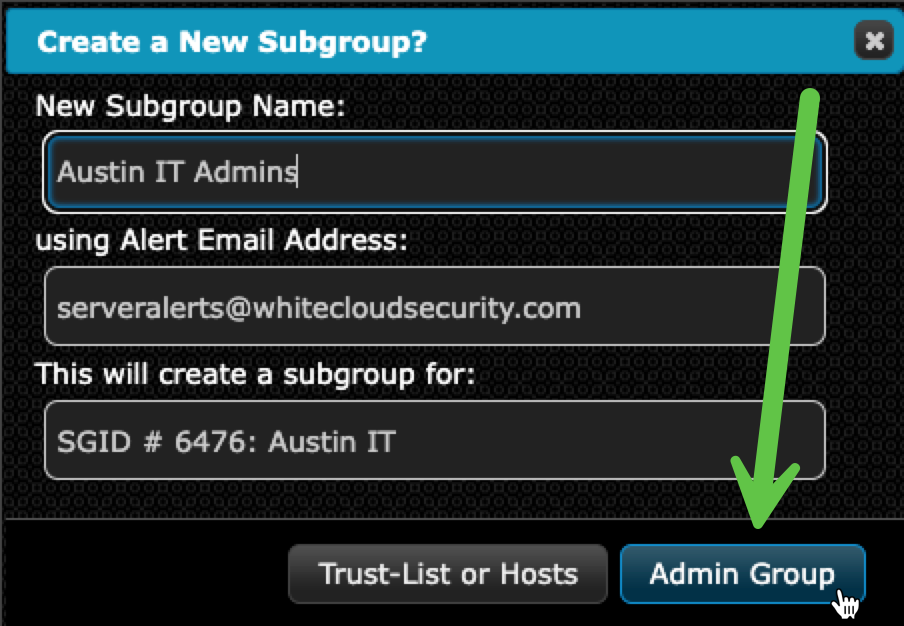
- This creates an Admin Group for that Inheritance Tree
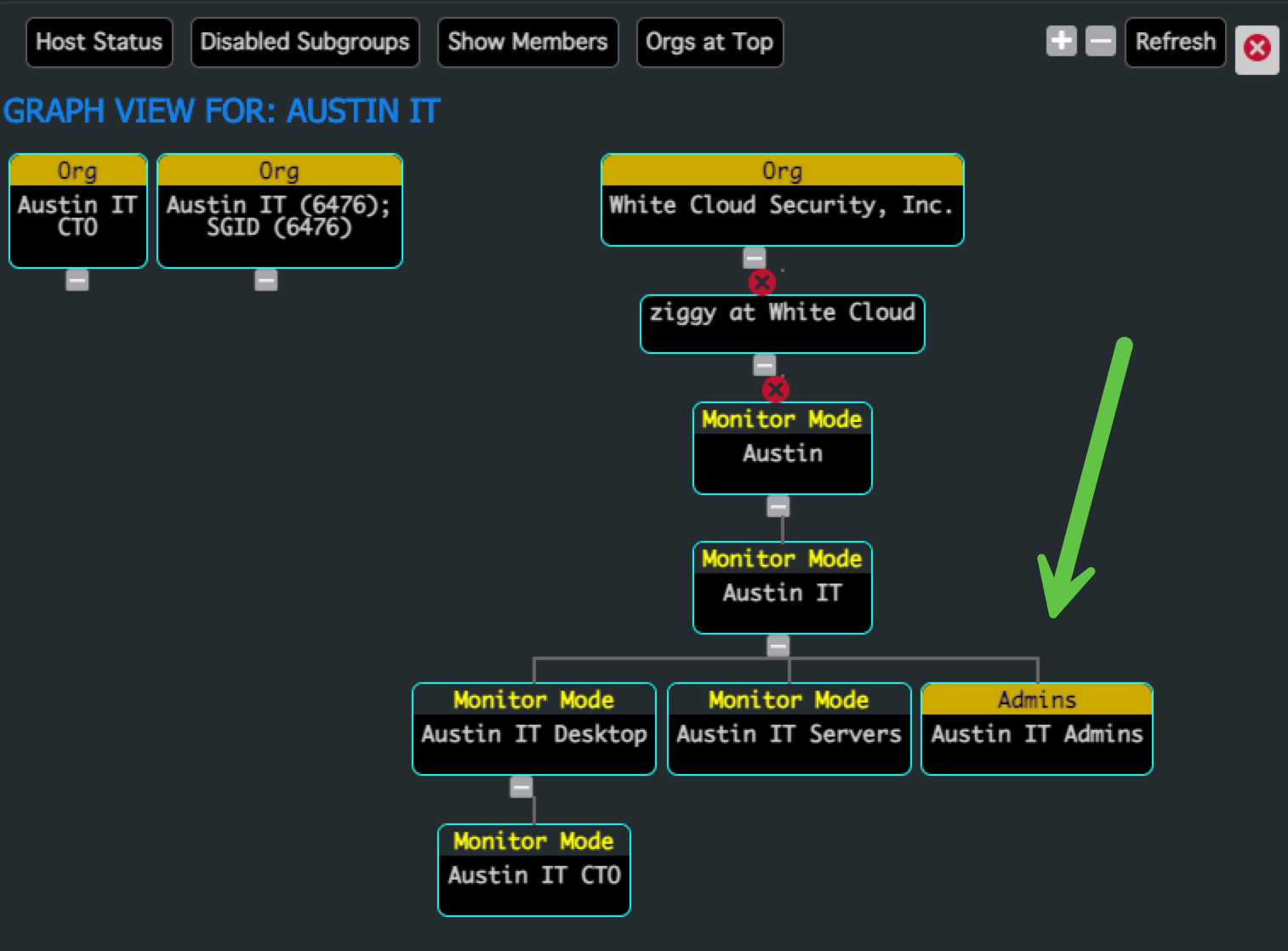
Admin Groups grant control only over Security Groups that permit them. Learn more on the Admin Access Control page.
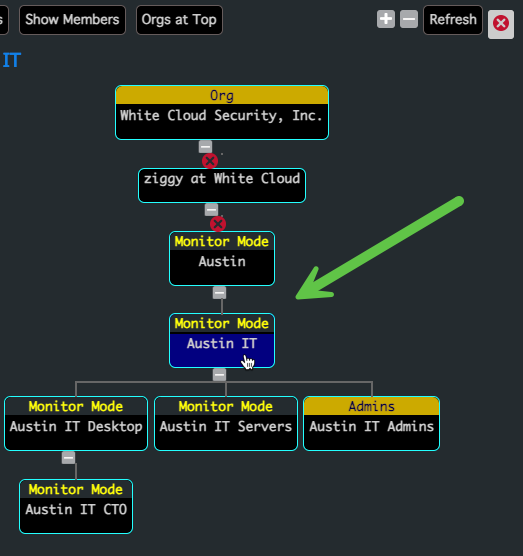
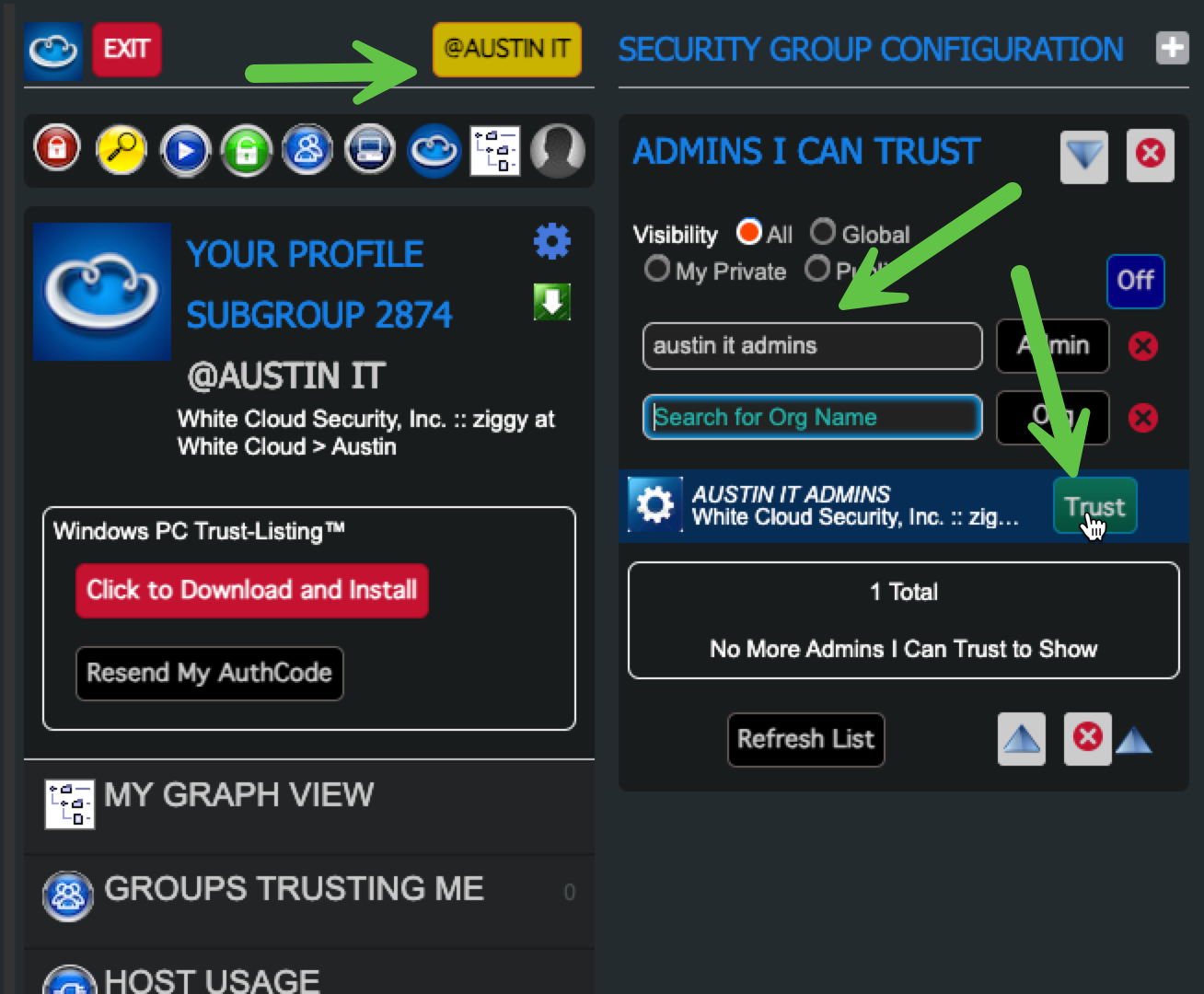
3. Permit the Admin Group in Your Security Group
- Select the Security Group you want the Admin Group to manage
- Open “Admins I Can Trust”
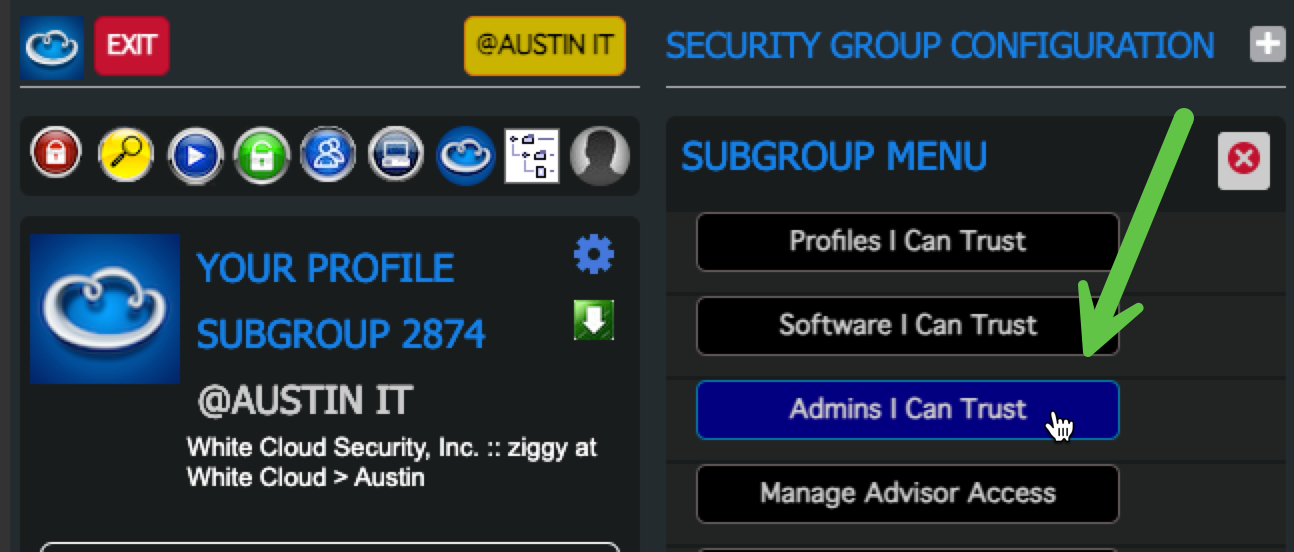
- Use the “Search for Admin Name” filter
- Permit the Admin Group
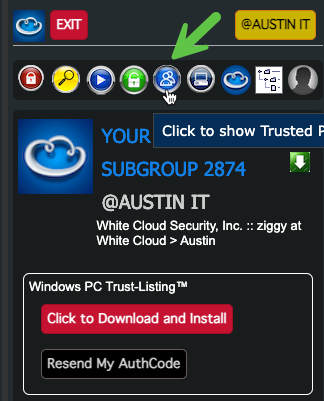
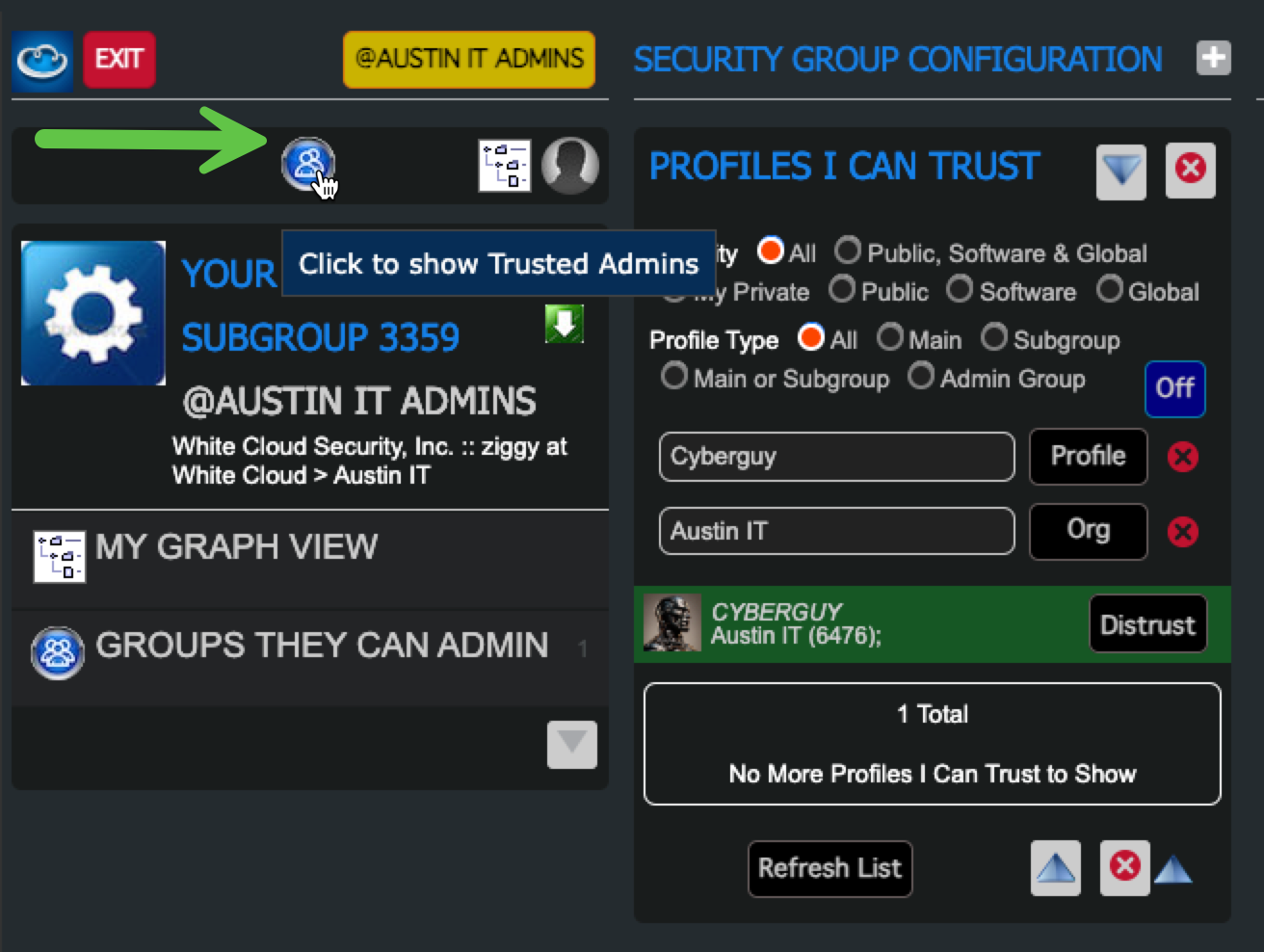
- Click on the "Show Approved Profiles" icon
- Verify that the Admin Group has access to the Security Group
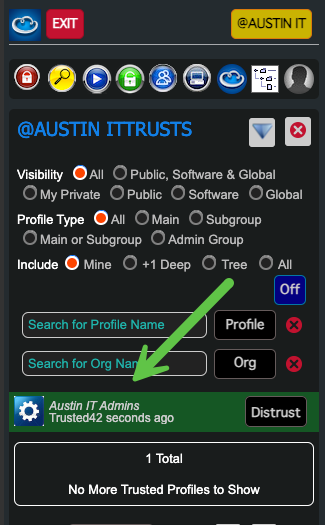
This allows the Admin Group members to edit the Security Group and its policies.
4. Add the User to the Subgroup Org
- On the Graph View page
- Browse to the User Account to add as an Admin
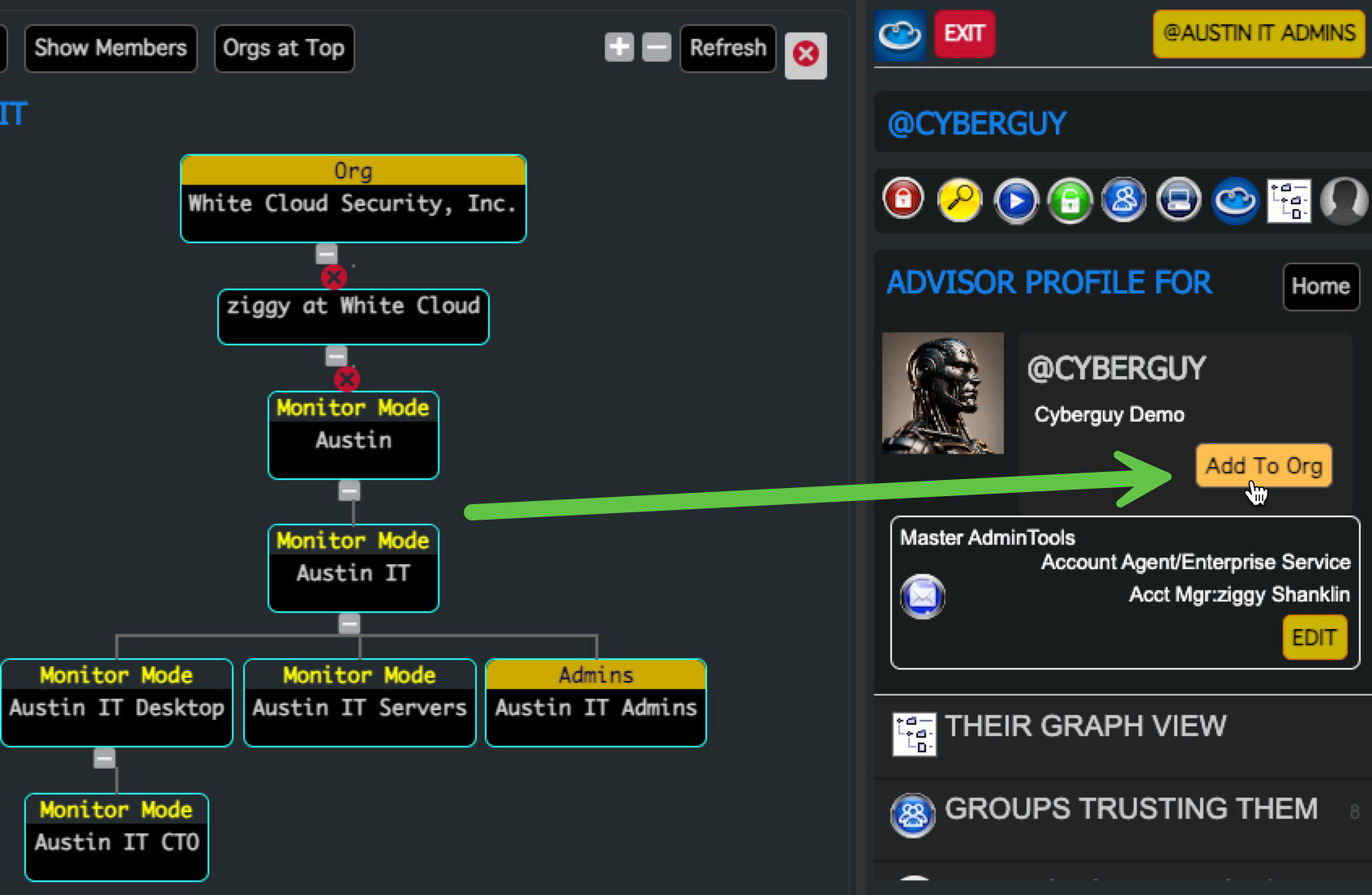
- Click “Add to Org”
- Filter by Org Name and confirm the user is now a member Choose the correct Org Role:
- Org Admin to edit org details and manage members
- Org Viewer for reporting and visibility only
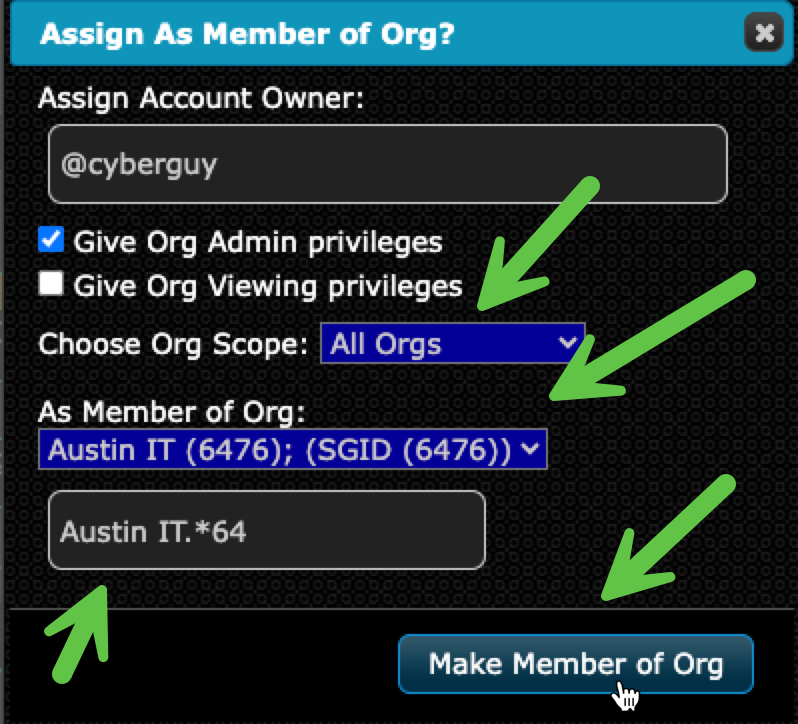
- Confirm Adding User as Member of Subgroup Org
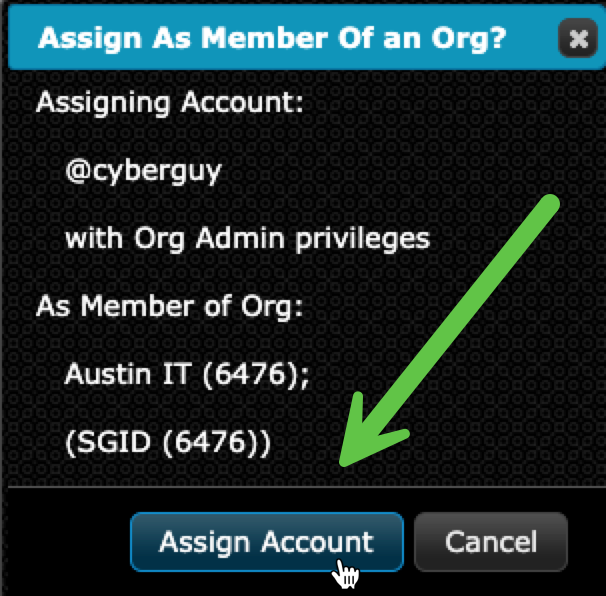
- Verify that the User is a Member of the Subgroup Org
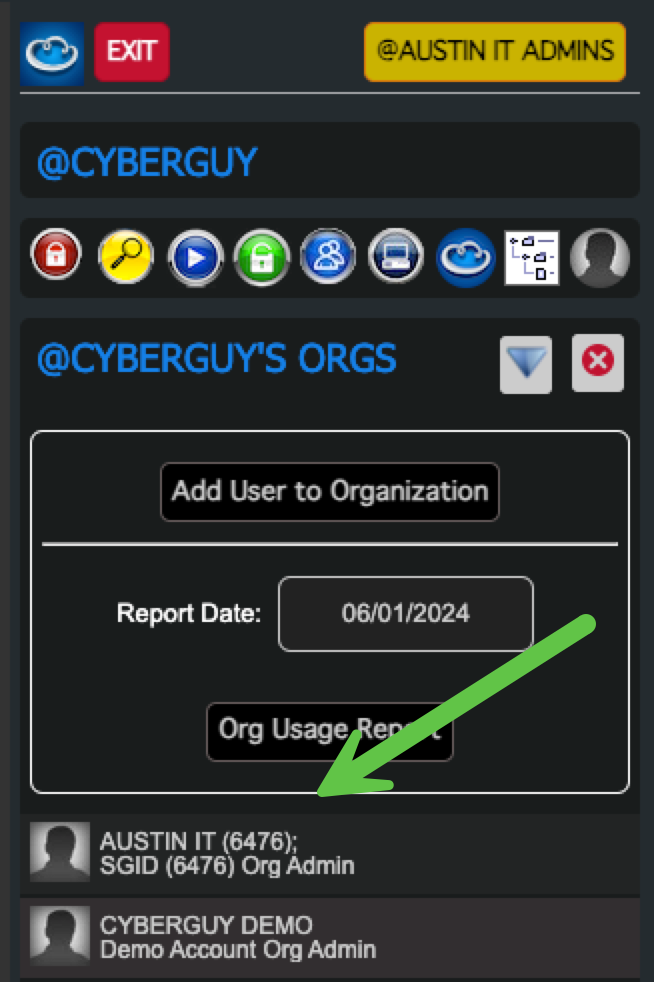
Read more in Organization Roles and Delegation.
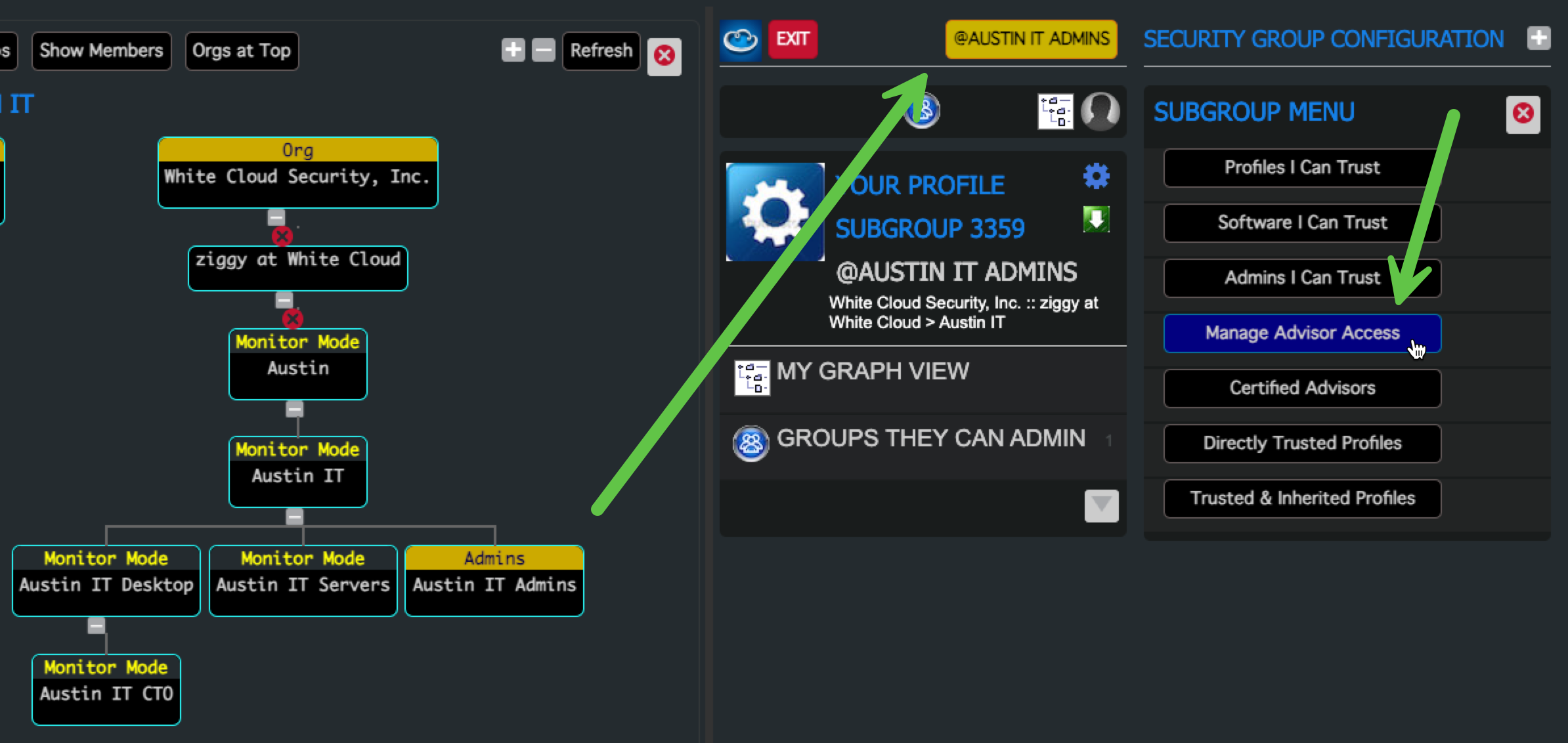
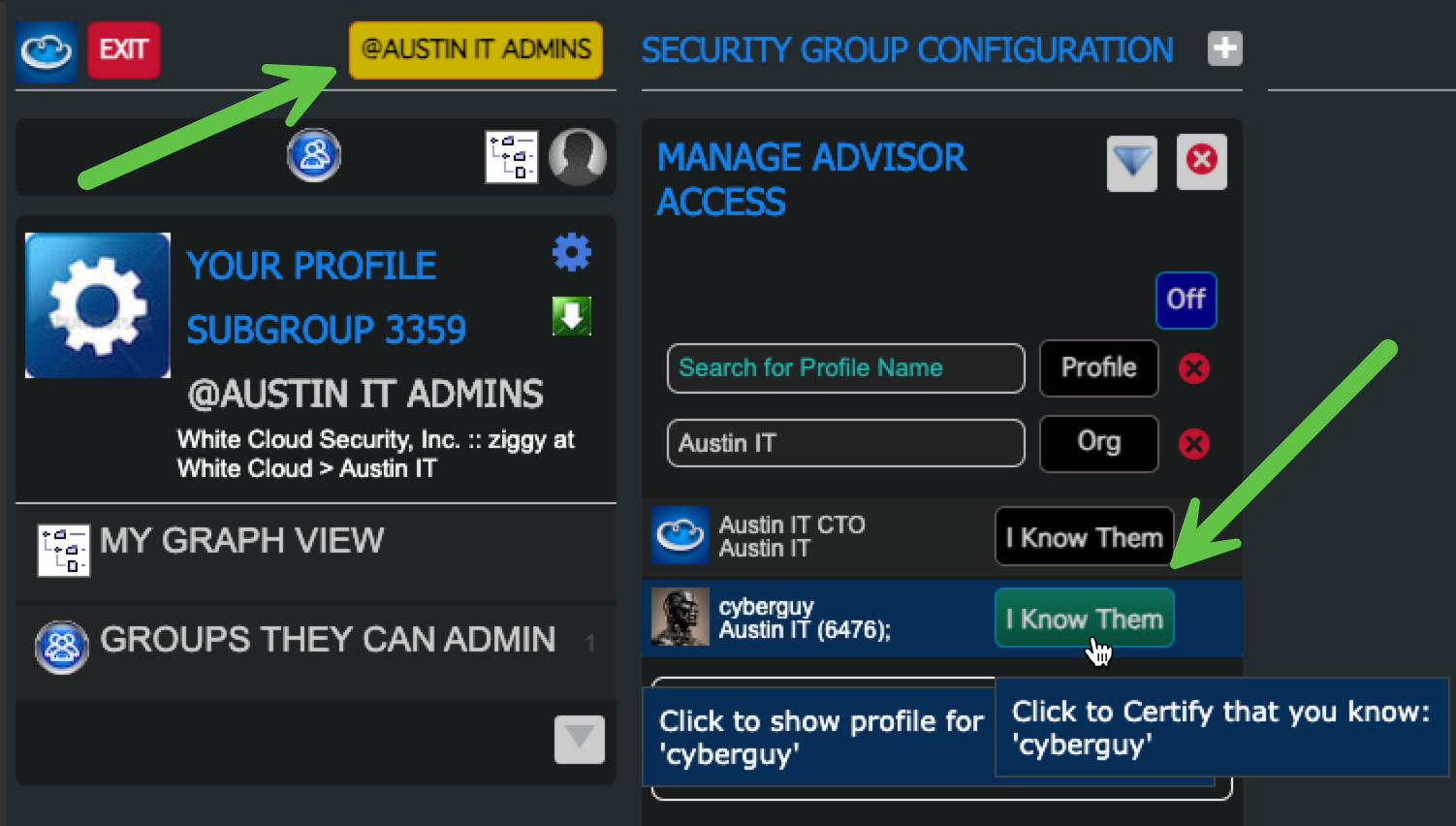
5. Add the User to the Admin Group starting with "I Know Them"
- Select the Admin Group
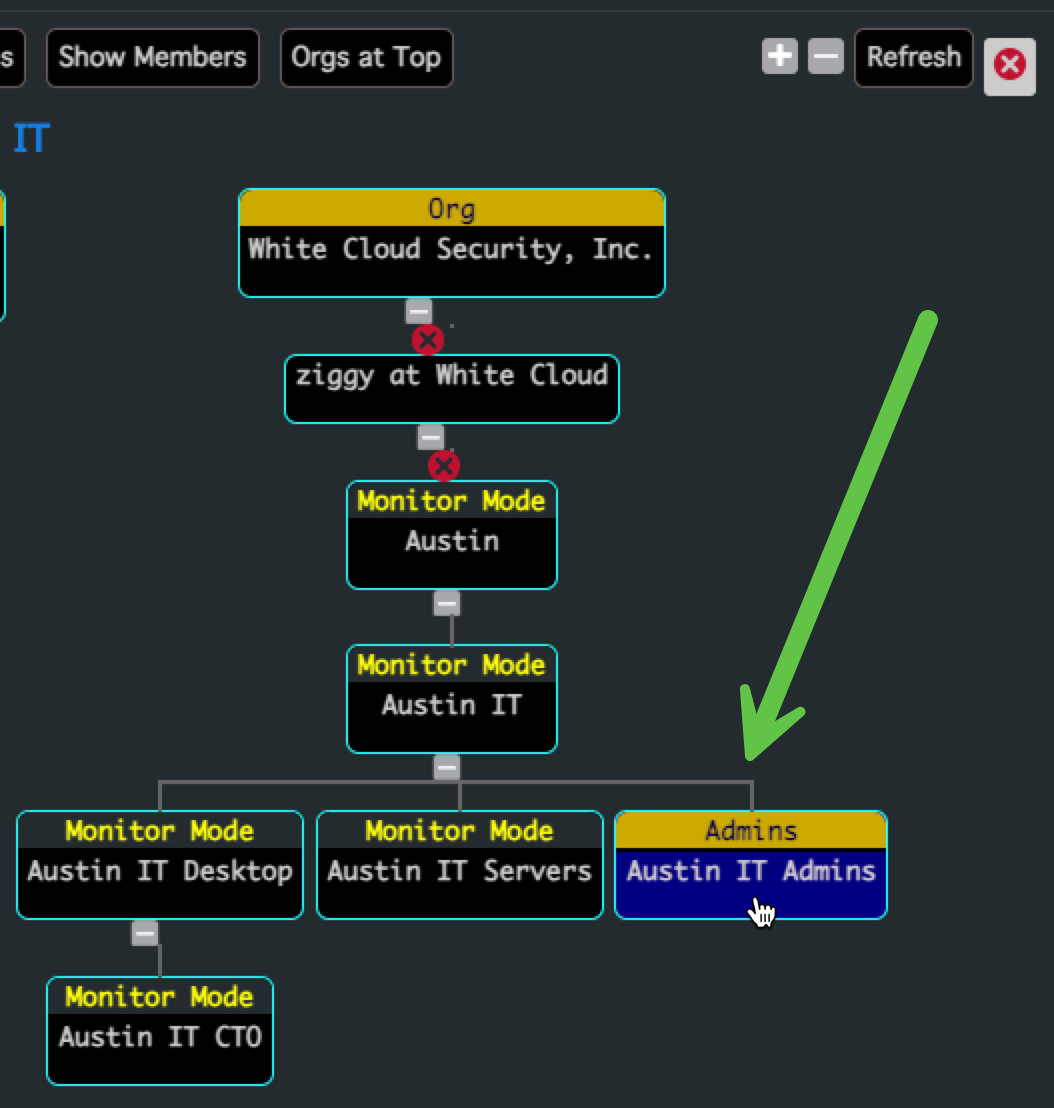
- Click “Manage Admin Access”
-
-
Use the “Search for Org Name” filter to find the User
-
Click on **"I Know Them" to enable their proile in "Profiles I Can Trust"
-
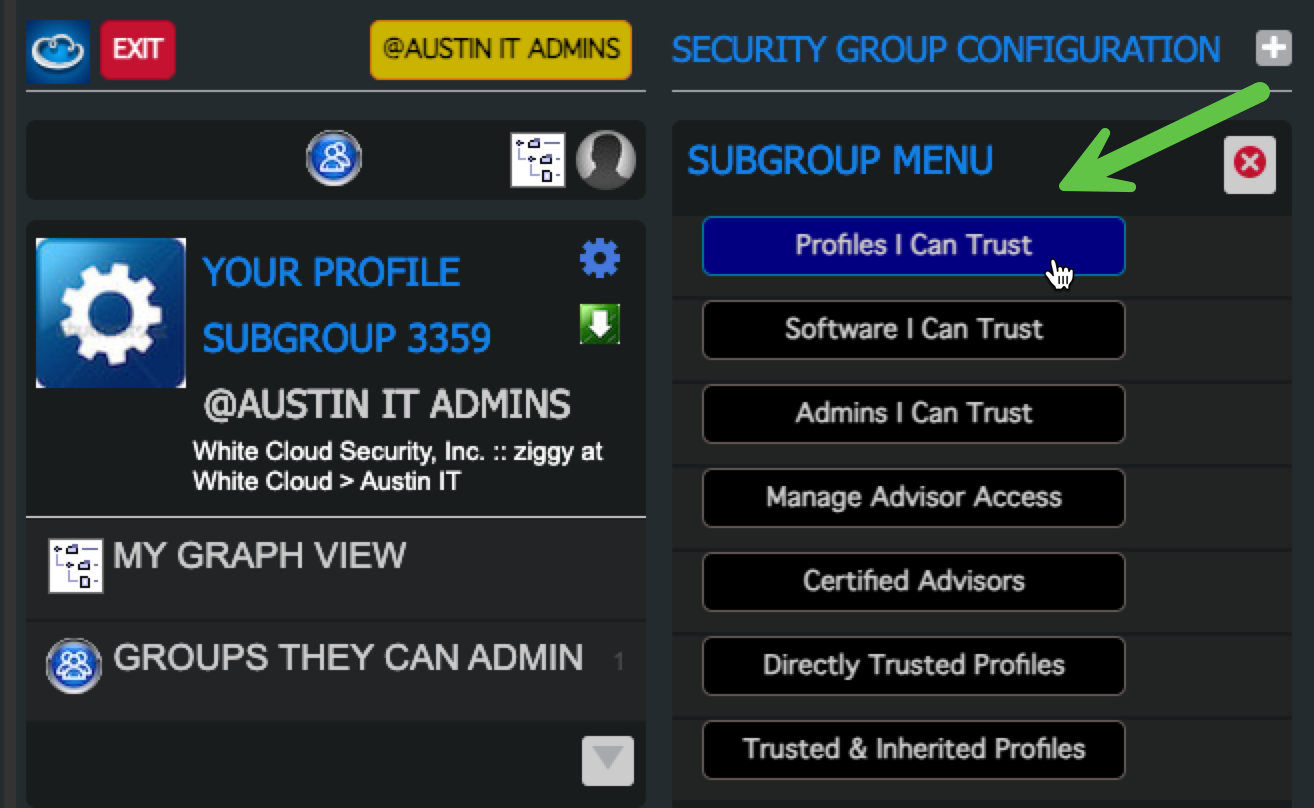
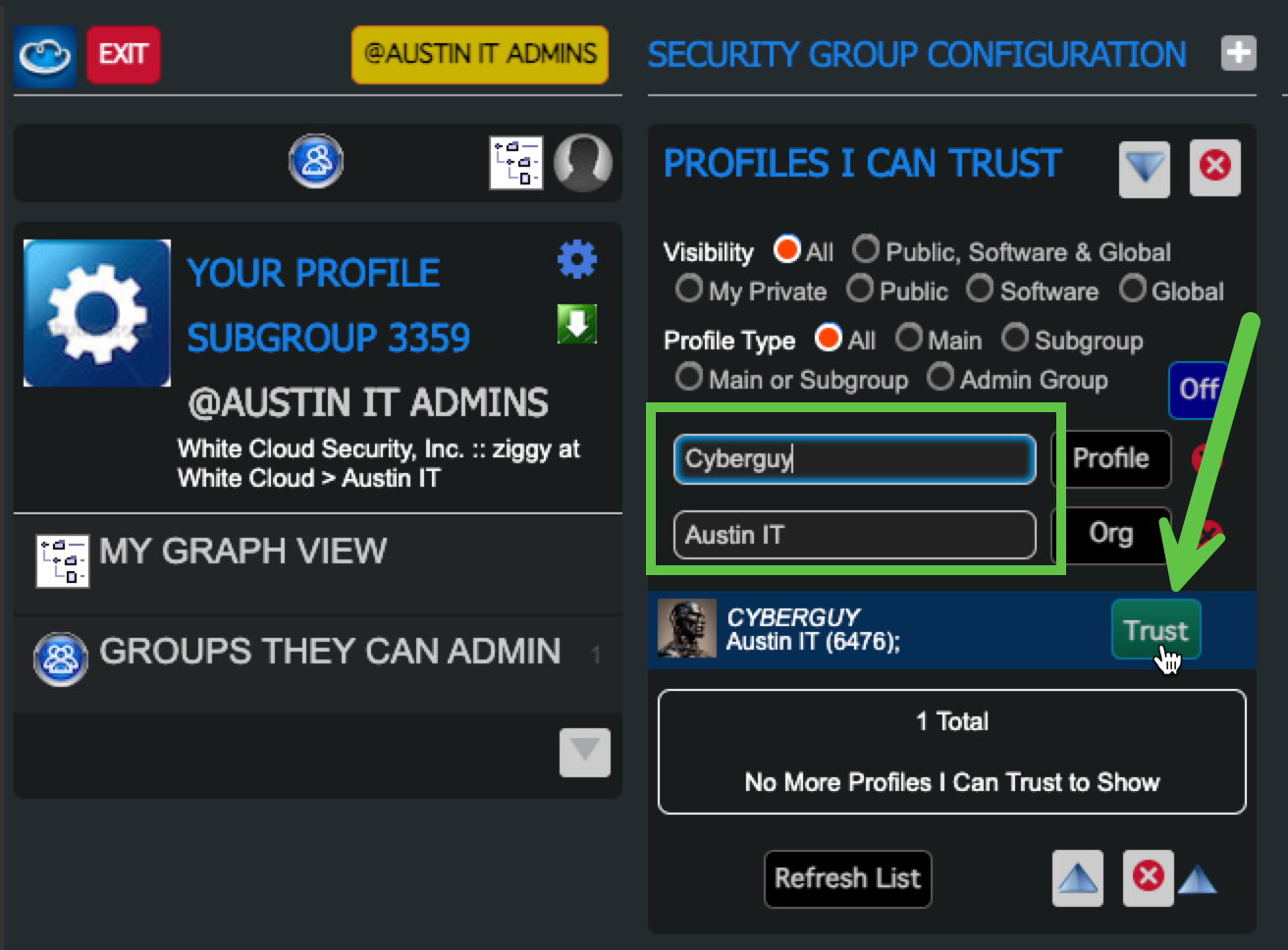
6. Permit the User and "Profiles I Can Use"
-
Go to “Profiles I Can Use”
-
-
Filter by Org Name and click “Permit” next to their name
-
This confirms they are a known and authorized Admin.
-
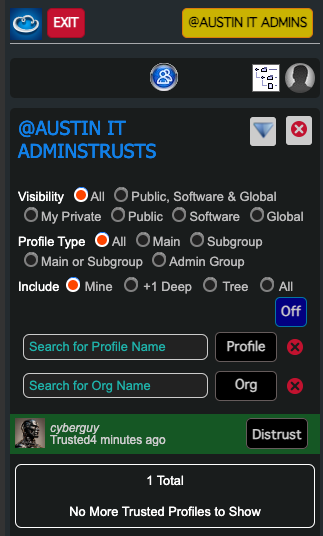
7. Verify Admin Access
- Click on "Show Approved Admins" in the Admin Group
- Verify the User is an Admin
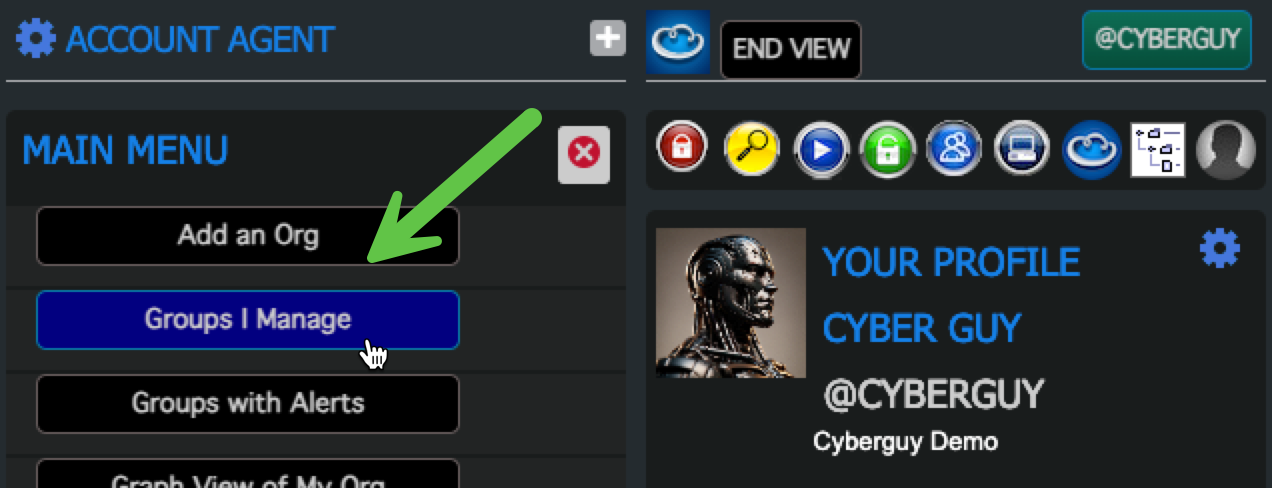
8. User can verify their Admin Access
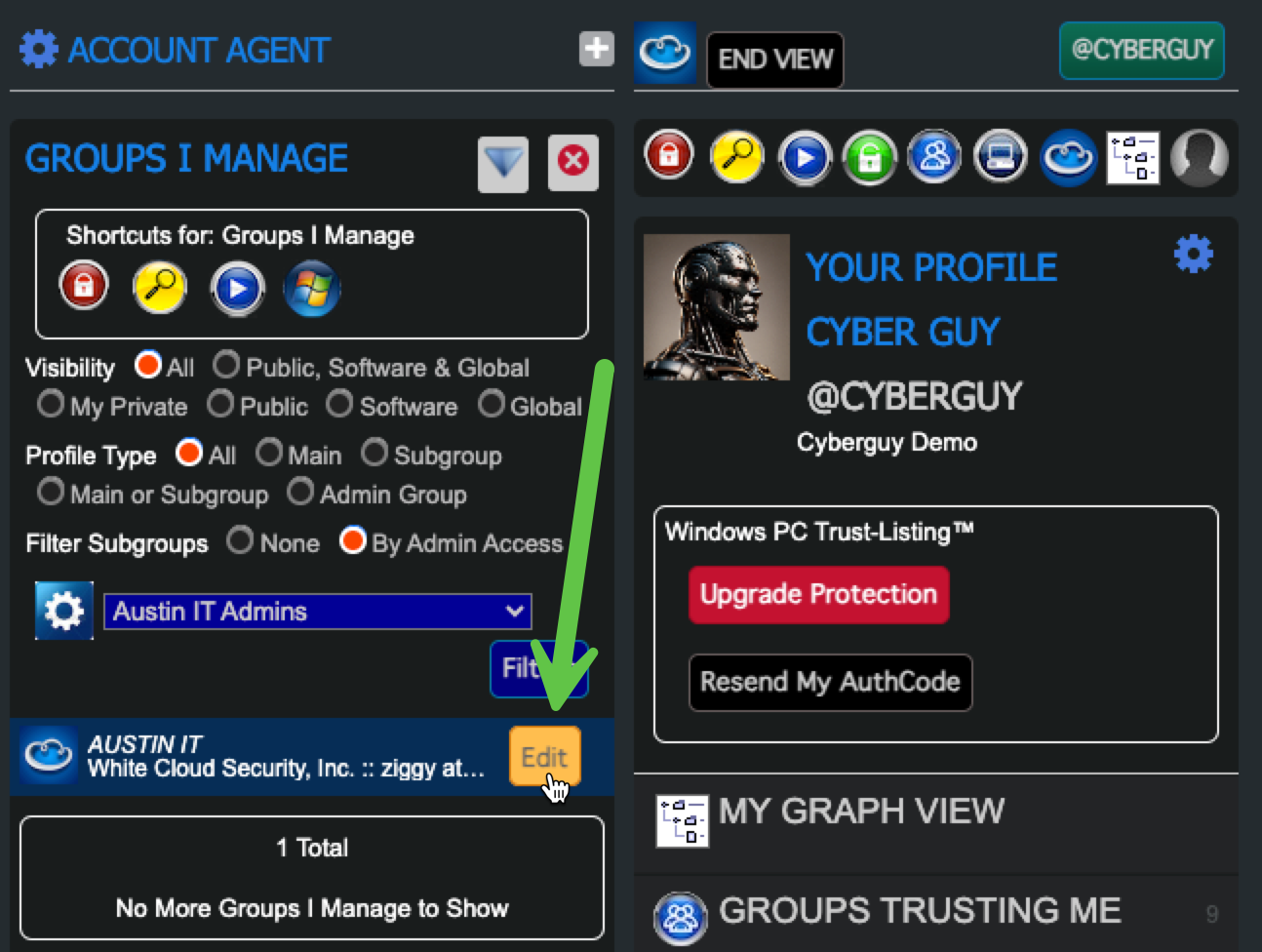
- The User clicks on “Groups I Manage” in the "Main Menu"
- Click "Edit" to Confirm the user now has management rights for that Security Group
To audit Admin Access, see the Security Event Log Reference.
⚠️ Key Access Control Concepts
- Security Group ownership or Admin Approval is required to manage a Security Group
- Even System Admins must be added to an Admin Group to manage that Security Groups
- System Agents have read-only browse access to all security groups
- Customers should never be made System Agents
- Account Agents can add users for their team only within their Org
See our RBAC and Access Control Model and more details on roles and access isolation.
✅ Summary: Role Checklist
| Role | Responsibilities |
|---|---|
| Org Admin | Edit Org name, add/remove users |
| Org Viewer | Read-only access and reporting |
| Admin Group Member | Manage Security Groups that trust their Admin Group |
| System Agent | Read-only access to all Security Groups |
| Account Agent | Add users within their own Organization |
| Master Admin | View-As privileges (audit logged) |
📎 Related Documentation
- Zero-Trust Admin Access
- Security Groups Inheritance Tree
- Zero-Trust App Security Model
- Organization User Roles
- Managing Apps
🧠 Final Thoughts
Real-time Zero-Trust Admin delegation lets you control exactly who can manage what — and nothing else. By aligning your Security Groups and Subgroup Orgs with Admin Groups and trusted relationships, White Cloud Security provides unmatched granularity and clarity in administrative access control. No blind spots, no backdoors, no assumptions.
Only the trusted and verified have access — and only to what they’ve explicitly been granted.